31/3/2026 · 7 min read
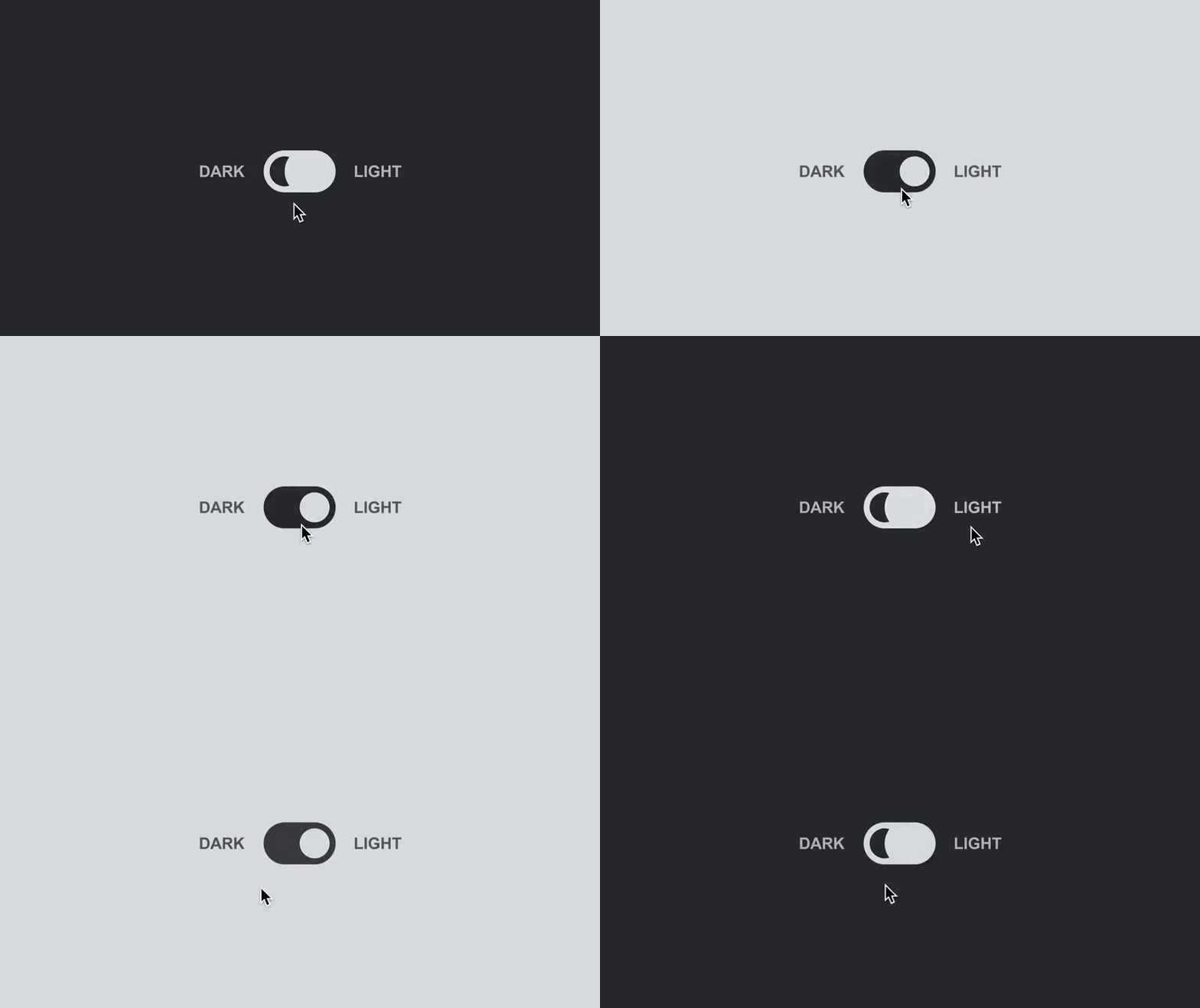
When a user switches your product to dark mode, they're asking for more than a background color change. They're asking for a completely reconsidered visual environment: different contrast relationships, different elevation logic, different shadow treatment, different handling of imagery and color accents. Getting this right requires a systematic approach that starts before any dark-mode screen is drawn.
This guide is for designers who are implementing dark mode for the first time or revisiting an existing implementation that feels off. It's not a primer on prefers-color-scheme — the CSS is the easy part. The hard part is understanding how human vision changes in dark environments and building a color system that accounts for it.

In bright environments, the eye's cone cells handle color and detail perception. In dark environments, rod cells take over — and rods are much more sensitive to light intensity and contrast. A very bright element on a very dark background creates halation: the bright element appears to bleed and glow, making it harder to read, not easier. This is why pure white text on pure black (#000) backgrounds causes eye strain with extended use, particularly for users with astigmatism.
The practical implication is that true dark mode is not high contrast — it's carefully calibrated contrast. The most readable dark mode backgrounds are in the #1A1A1A to #242424 range rather than #000000. The most readable text colors are in the #E0E0E0 to #F0F0F0 range rather than #FFFFFF. This is why every major platform — iOS, Material Design, macOS — uses off-blacks and off-whites rather than maximum contrast.
Color perception also shifts in dark environments. Saturated colors appear more vivid and can feel aggressive. Colors that work as calm, professional accents in light mode — a particular blue, an orange CTA button — can read as harsh or alarming in dark mode. Most brand colors need to be desaturated by 10–20% and lightened when used on dark backgrounds to maintain the same perceived weight.
The most common dark mode failure is a color system that only has one layer: raw values. If your components reference hex codes directly, implementing dark mode means manually updating every component — a maintenance nightmare that grows exponentially as the product scales. The solution is semantic tokens: named roles that abstract over the raw values.
A semantic token system has at least two layers. The first is the primitive palette: raw values like gray-50: #F9FAFB, gray-900: #111827, blue-500: #3B82F6. The second is the semantic layer: role-based names like color-surface-base, color-text-primary, color-action-default. Components reference semantic tokens only. In light mode, color-surface-base resolves to gray-50. In dark mode, the same token resolves to gray-900. The component doesn't change; only the token mapping changes.
Define semantic tokens for every color role in your system: surface colors (background, card, overlay), content colors (primary text, secondary text, disabled), interactive colors (default, hover, active, disabled), status colors (success, warning, error, info), and border colors. It takes time to set up properly. Once done, dark mode becomes a mapping exercise rather than a redesign.

In light mode, elevation is communicated primarily through shadows — darker shadows on a light background convey depth. In dark mode, this breaks down. Dark shadows on a dark background are imperceptible. The Material Design team identified the correct solution early: in dark mode, elevation is communicated through surface lightness rather than shadows. Higher surfaces are lighter.
In practice, this means your card component in dark mode should have a slightly lighter background than the page it sits on — not a shadow beneath it. A modal overlay should be lighter still. A tooltip or popover, the lightest surface of all. The gradient from dark to lighter communicates hierarchy without requiring visible shadows.
Shadows don't disappear entirely in dark mode — they're still useful for interactive feedback (a button being pressed) and for communicating that something is floating. But they should be less opaque, sometimes tinted with the hue of the background rather than pure black, and never relied on as the primary elevation signal. Light, not shadow, is the language of elevation in dark environments.

Text in dark mode should generally be slightly lighter than what feels comfortable on first look. The eye adjusts, and what seems too bright at 100% opacity becomes readable and calm at sustained use. Start with white text at 87% opacity for primary content, 60% for secondary text, and 38% for disabled or placeholder text — these are Material Design's calibrated values and they hold up well across a wide range of backgrounds.
Weight and rendering also shift in dark mode. Thin font weights that look elegant on white can appear spindly and hard to read against dark backgrounds. Consider going one weight up for body text in dark mode — regular instead of light, medium instead of regular. Some variable fonts with optical size axes will handle this automatically; most won't.
Line spacing often needs a slight increase in dark mode for the same reason: reduced contrast requires more visual separation between lines to maintain scannability. An increase of 5–10% in line height can make a meaningful difference without visibly changing the layout. Test your dark mode typographic settings with real body copy — not just headings — in continuous reading scenarios.

Images are the most commonly overlooked element in dark mode. A product photo or illustration designed for a white background will have a white or transparent perimeter that creates a harsh edge against a dark surface. The solution is either to treat images with a subtle overlay in dark mode (a semi-transparent dark gradient at the edges) or to add the equivalent of a `mix-blend-mode: multiply` layer that softens the boundary. Neither is perfect for all images; it requires testing case by case.
Data visualizations are another edge case. Chart colors chosen for light backgrounds are often too saturated for dark mode and can lose their distinguishability when the background shifts. Maintain a separate set of data palette values for dark mode — usually the same hues, lighter and slightly less saturated — and map them through the same semantic token system.
Focus rings and keyboard navigation indicators are frequently forgotten. A blue outline on a white background is clear; the same outline on a dark background may need to be thicker, lighter, or supplemented with an inner ring to maintain the same level of visibility. Test dark mode with keyboard-only navigation before shipping. It's one of those things that looks fine visually and fails completely functionally.
If you've built your color system with semantic tokens from the beginning, dark mode is largely a mapping exercise — match each semantic token to its dark-mode value and you're done. If you haven't, the correct order of operations is to refactor the token layer first, then implement dark mode. The temptation is to do dark mode first and pay the token debt later. That debt compounds; avoid it.
Start with the hardest surface to get right: your primary content surface — the background behind body text. Get that contrast relationship calibrated correctly. Then work outward to cards, modals, and overlays. Build your elevation scale. Revisit your accent colors and adjust saturation. Test typography in continuous reading. Handle images. And always test with users who actually use dark mode daily — their eyes are tuned to it in a way that a light-mode-primary designer's aren't.