28/5/2026 · 13 min read

For a long time, Figma's auto layout felt like a convenience feature — a way to avoid manually nudging padding after every content change. Designers who learned it early used it to save clicks. Designers who did not tended to build frames that looked perfect at one viewport and collapsed the moment content shifted.
The 2025–2026 updates changed the stakes. Wrap mode, advanced gap controls, absolute positioning within auto layout frames, and full variable binding for spacing tokens have turned auto layout from a convenience into the core infrastructure of a production-grade design system. If you are still treating it as optional, you are carrying technical debt that will compound every time your component library needs to grow.

The core mechanic of auto layout has not changed: a frame lays out its children along an axis, respects padding, and resizes according to rules you set on each child. What changed in 2025–2026 is how much of that behaviour you can now control without leaving the design tool, and how precisely you can tie that control to a token system.
The most significant structural addition is wrap mode. Before wrap, an auto layout frame in horizontal mode would simply overflow or shrink — it had no way to reflow children onto a second line. Wrap mode brings CSS flexbox wrap semantics directly into Figma, so a row of tags or a grid of cards can genuinely reflow as the container narrows. This is not a simulation. The engine honours the same rules a browser flex container does, which means designs built with wrap mode translate to code with almost no translation work.
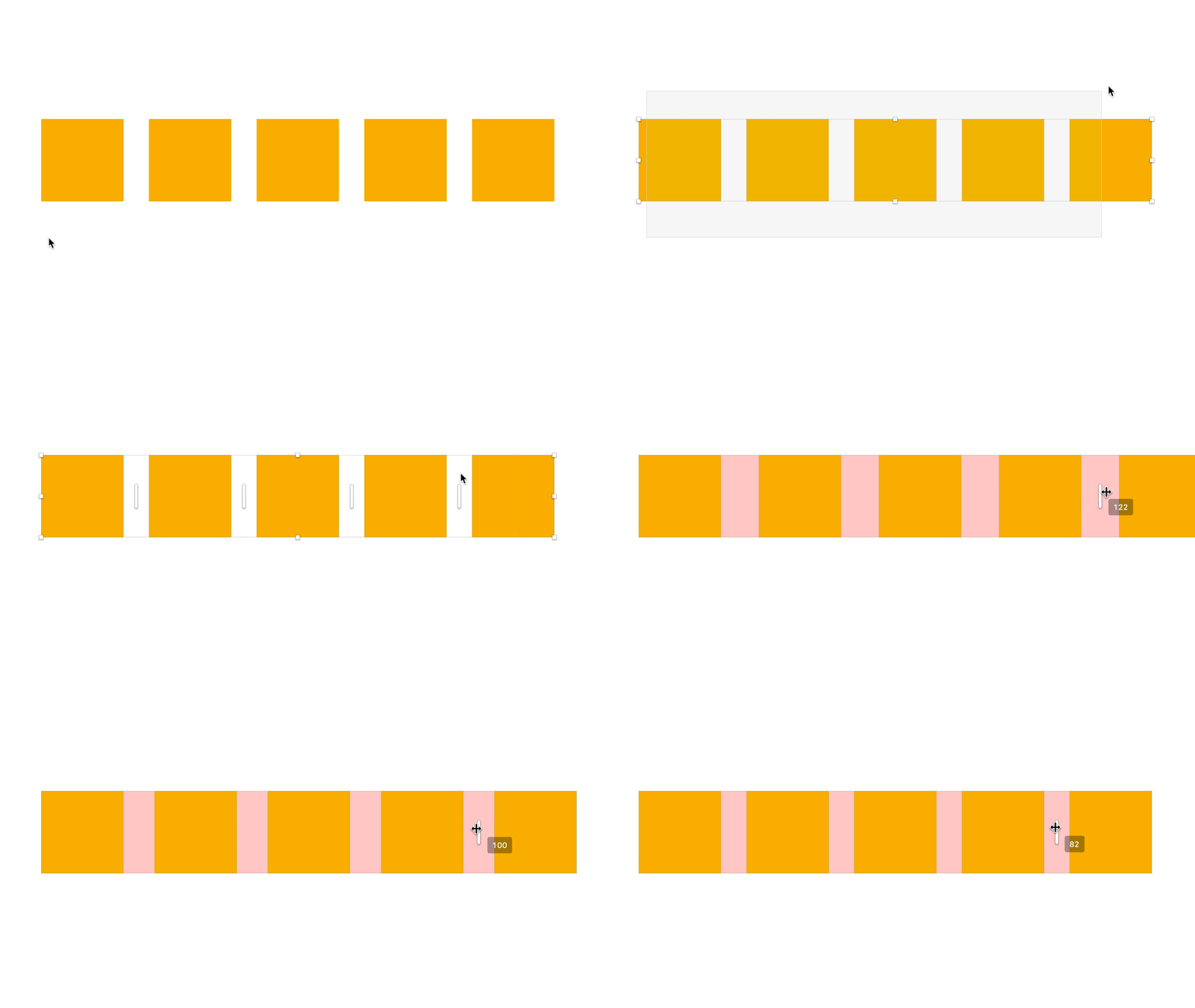
The second big change is the separation of horizontal and vertical gap. Previously a single gap value applied in both directions. Now you can set row gap and column gap independently, which is essential for any component that wraps — you almost never want the same space between rows as between columns. Combined with percentage-based sizing for children, this gives you a layout engine that covers the vast majority of real-world responsive patterns without reaching for a plugin or a workaround.
Variable binding for spacing values rounds out the picture. Any padding or gap field in an auto layout frame can now be wired to a Figma variable. Change the variable value in one place and every frame bound to it updates immediately. For teams maintaining a spacing scale, this eliminates an entire category of inconsistency that used to accumulate silently over months.

Every auto layout frame is defined by three fundamental decisions: the direction its children flow, whether those children are allowed to wrap, and how much space sits between them. Getting these three right before touching anything else is the discipline that separates components that scale from components that need to be rebuilt every six months.
Direction is the easy one. Horizontal for rows — navigation bars, button groups, tag lists, card grids. Vertical for columns — page sections, form fields, sidebar items, any list. The mistake I see most often is defaulting to vertical even for layouts that are conceptually horizontal, then fighting the layout engine for the rest of the component's life. Choose direction by the primary flow of content, not by what feels intuitive in the moment.
Wrapping should be the default for any component whose children are not strictly controlled in number. A button group with two items probably does not need wrap. A tag list that might have two tags or twelve absolutely does. The rule of thumb: if you cannot guarantee the number of children at design time, enable wrap. The overhead is negligible; the protection against overflow is substantial.
One of the most misunderstood features in the 2025 update is the ability to mark individual children of an auto layout frame as absolutely positioned. When a child is set to absolute, it is removed from the layout flow entirely and positioned relative to the parent frame's bounds. The other children continue to flow as normal, as if the absolute child does not exist.
This solves a problem that previously required either a complex stacking workaround or abandoning auto layout altogether: overlapping elements. A notification badge on a button. A close icon anchored to the corner of a modal. A floating label that sits above a form input rather than beside it. All of these are now clean to build inside an auto layout frame, without a single manual positioning hack.
The constraint model for absolutely positioned children mirrors CSS absolute positioning. You can pin to any edge or combination of edges, and you can set an offset from each pinned edge. The offset fields accept variable bindings, so a badge that sits a fixed distance from its parent corner can have that distance driven by a spacing token.
The pattern to watch out for is overusing absolute positioning as an escape hatch. If you find yourself making more than one or two children absolute within the same frame, it is usually a signal that the component's layout concept needs revisiting. Absolute positioning is the right tool for decorative or overlay elements; it is the wrong tool for the primary content structure of a component.

Cards and navigation are the two component types that reveal the quality of an auto layout implementation fastest, because both are used at multiple sizes in every product and both tend to receive content that varies significantly in length. Getting them right is a reliable proxy for how well the rest of the system will hold up.
A responsive card starts with a vertical auto layout container set to fill width and hug height. The image slot at the top should be set to a fixed aspect ratio with fill sizing horizontally — this ensures it stretches with the card without breaking proportions. The body below is a nested vertical auto layout with fixed padding and a gap tied to a spacing token. Within the body, the title truncates at one or two lines via text overflow settings, the description fills remaining space with hug height on its own, and the footer row is pushed to the bottom using a spacer element or by setting the body's distribution to space between.
Navigation is a horizontal auto layout with wrap disabled. Width fill, height fixed, padding tied to a horizontal spacing token. Each nav item is a child with hug sizing in both dimensions, making the item exactly as wide as its label plus icon plus padding — no more, no less. The active state is handled via a component variant swap, not by overriding positioning, so the layout engine never has to deal with a size change that breaks the row.
Single-level auto layout gets you a long way. Nested auto layout is what takes you the rest of the way. The principle is simple: any child of an auto layout frame can itself be an auto layout frame, with its own direction, wrap setting, gap, and padding. The nesting depth is unlimited. The complexity is manageable if you follow a consistent mental model.
Think of nested auto layout as a tree of layout decisions, where each node answers one question: how should my children be arranged? The outer frame answers: are the major sections horizontal or vertical? The next level down answers: within this section, how are the elements arranged? And so on until you reach leaf nodes — text, icons, images — that have no children of their own. Every node in the tree has a direction, a gap, and a padding. That is the complete grammar of the system.
The practical implication is that a complex component like a data table row — icon, primary text, secondary text, tag, status badge, action button — is not a single auto layout frame with six children. It is a horizontal outer frame containing three or four nested frames, each of which groups related elements with their own alignment rules. The icon and primary text are in one nested vertical frame. The secondary text and tag are in another. The status badge is absolute. The action button is in a third nested frame, right-aligned. Each nested frame can be resized, hidden, or swapped independently without breaking the row's overall structure.
The naming discipline that makes nested auto layout maintainable: give every auto layout frame a name that describes its layout role, not its visual appearance. "row / leading content" is a better name than "left side" because it tells the next designer that this frame is a layout container, not just a visual group. This discipline pays off the first time someone else opens the file and needs to understand the component without asking you.
Variable binding for auto layout properties is the feature that closes the loop between design system documentation and the actual components. Before this, a spacing token existed in two places: the token documentation and the designer's memory. Now it exists in one place — the variable — and every component that uses it is a live expression of the current token value.
The setup is straightforward. You define a collection of number variables for your spacing scale — typically something like 4, 8, 12, 16, 24, 32, 48, 64 — and give each a semantic name alongside the numeric name: spacing/xs, spacing/sm, spacing/md, spacing/lg, and so on. Then, instead of typing 16 into a padding field, you bind that field to the spacing/md variable. The value displayed is still 16, but the binding is visible in the panel, and anyone inspecting the component can see that this padding is intentionally spacing/md, not an arbitrary 16.
The power becomes apparent when you need to update the scale. A product decision comes in that the default spacing should shift from 16 to 18 to better accommodate a new typeface. In a library without variable binding, this is a find-and-replace exercise that never quite catches every instance. With variable binding, you change spacing/md from 16 to 18, and every component that uses it — cards, modals, sidebars, form groups — updates immediately and correctly.
The development handoff argument alone is worth the investment. A component built with nested auto layout, variable-bound spacing, and explicit sizing rules on every child contains enough information for a developer to implement it in CSS flexbox without a single clarifying conversation. The auto layout direction is the flex-direction. The gap is the gap. The padding is the padding. The fill and hug sizing rules map directly to flex-grow and fit-content. Nothing is lost in translation because there is almost nothing left to translate.
The deeper argument is about the relationship between design decisions and design debt. Every component built without auto layout is a component that will need to be rebuilt the first time its content changes significantly or the product extends to a new viewport. That rebuilding cost is invisible until it accumulates into a library that nobody trusts to scale. Auto layout does not eliminate that debt — bad auto layout implementation creates its own kind — but done right, it makes the library's behaviour predictable enough that designers and developers can extend it with confidence rather than caution.
Start with the components you ship most often. Apply auto layout consistently, bind the spacing fields you use more than twice, and test every component with real content variation before publishing. The library you build that way will still need maintenance. But it will be the kind of maintenance that improves the system, not the kind that just keeps it from falling apart.